Features

Termyn is in development: there are internal macOS builds and no public release yet. Everything on this page works in the current build, except where an item says otherwise and the list marked Planned at the end.

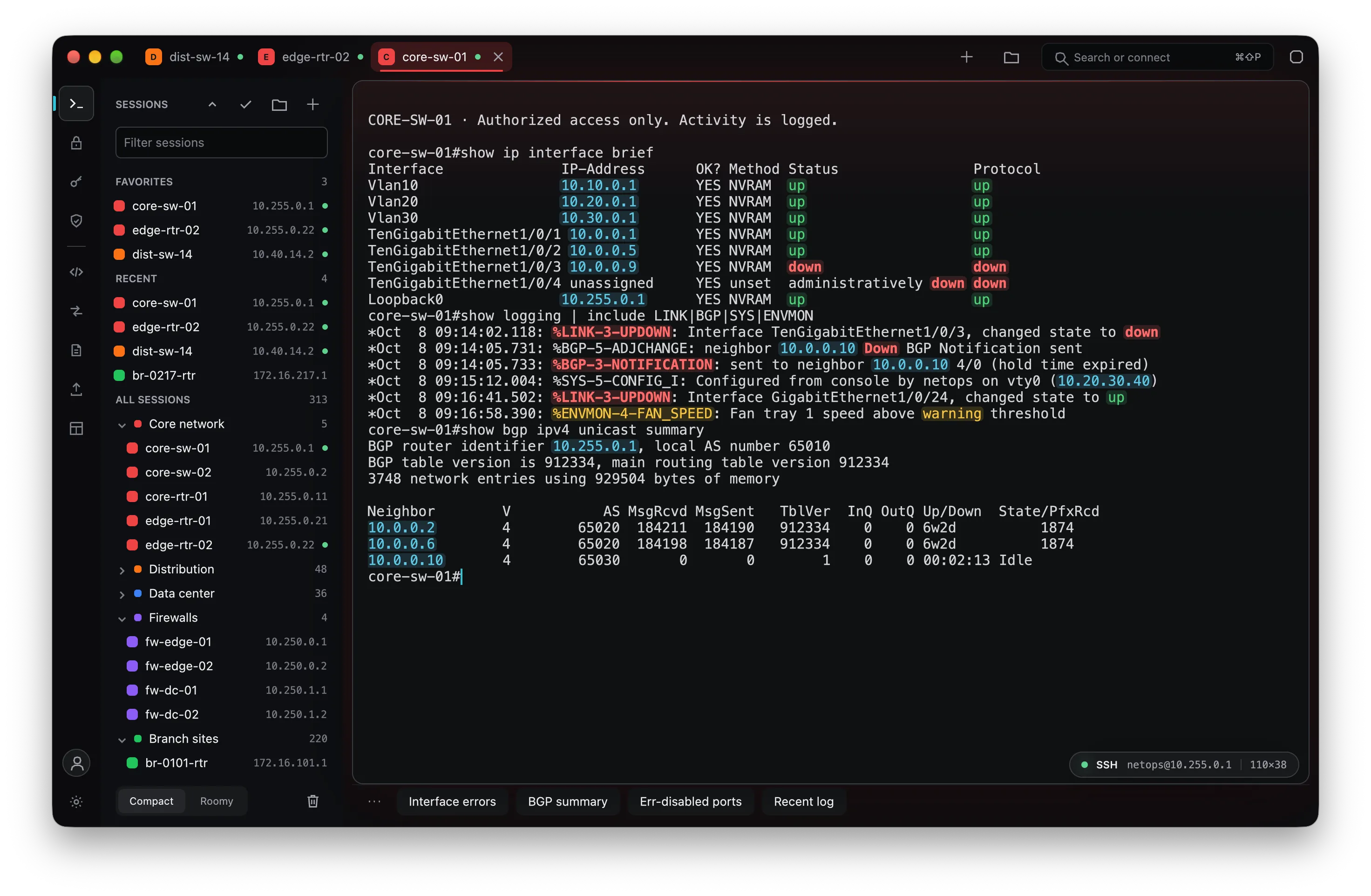
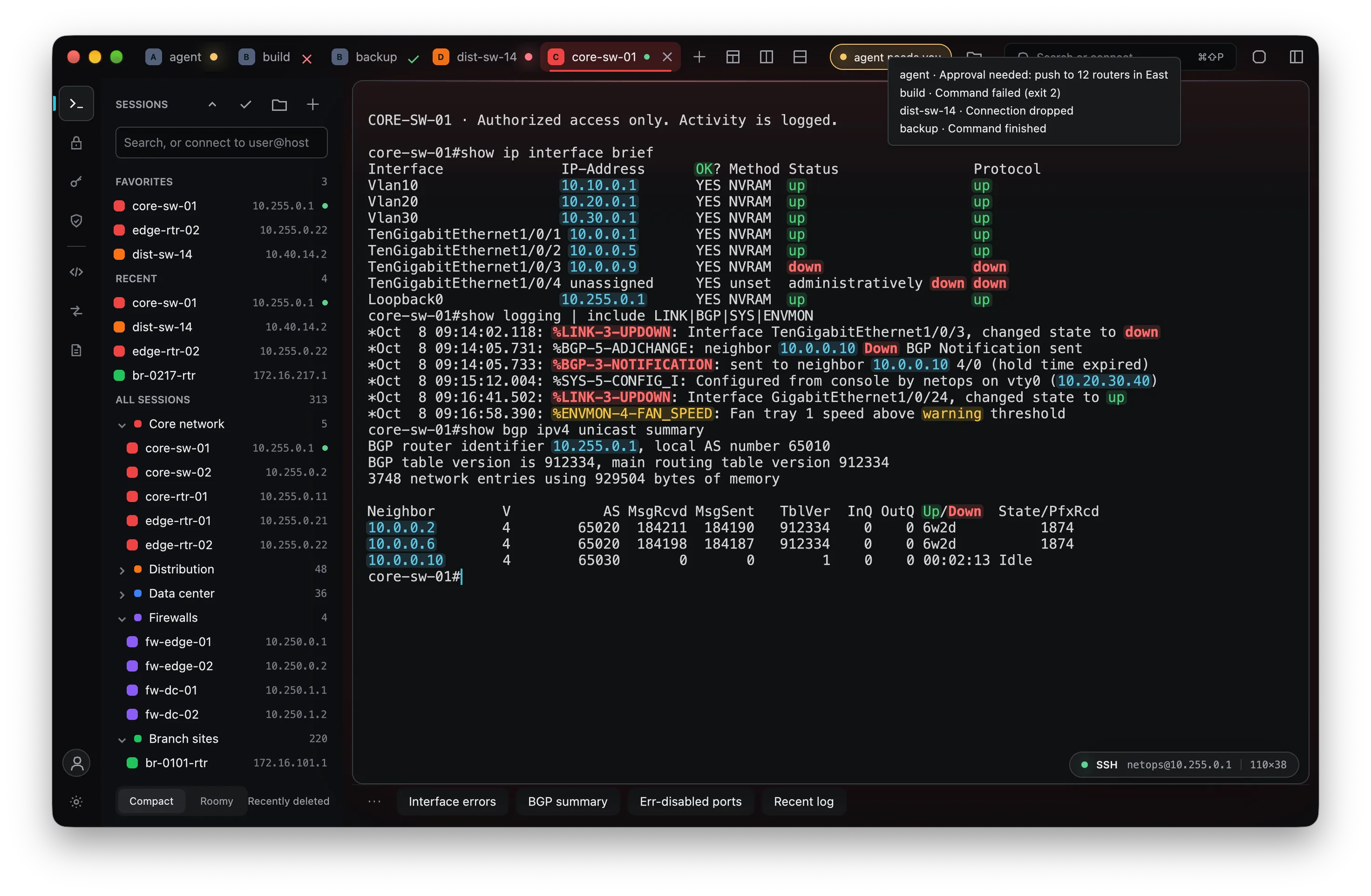
Termyn's main window: a session list with color-coded folders beside a switch's output with errors, warnings and addresses highlighted.
Screenshots of the current macOS build with a demo library: every session, address and line of device output in them is made up.

Built for hundreds of sessions

Termyn is an SSH client for people who live in network gear. The session list fits hundreds of hosts: one-line rows, favorites and recent sessions pinned at the top, folders that fold up with a count, a color per folder, and a filter that finds any session as you type. Output is colored as it arrives, so errors, warnings, healthy states and addresses stand out in a show command.

  • Colors for sessions and folders (red for production, say), carried into tabs.
  • Keyword highlighting tuned for network devices, and your own rules too.
  • Saved commands one click away under the terminal.
Tabs marked by what they need: a coding agent waiting for approval, a failed build, a finished backup and a dropped connection, listed in the header.

Tabs that tell you when they need you

Leave a coding agent running in one tab and keep working in another. When it stops to ask for approval, its tab lights up and the header says so; hover for what it is asking. Tabs also show when a command finishes or fails, and when a connection drops. On macOS the Dock icon counts the tabs waiting for you.

  • Works with Claude Code, Codex and any program that rings the terminal bell or sends a desktop notification (OSC 9, OSC 777 or kitty's OSC 99), including over SSH. Claude Code needs preferredNotifChannel set to iterm2 or terminal_bell; Codex works with its defaults, and shows its message with notification_method = "osc9".
  • Finished and failed commands come from shell integration (OSC 133).
  • Programs that report their status with OSC 7501 (blocked, done, error) mark their tab the same way, with their message, and the mark clears itself when the program is working again.
  • A tab tailing a device's log lights up on a critical syslog message (severity 0–3), or on any keyword rule you mark as an alert.
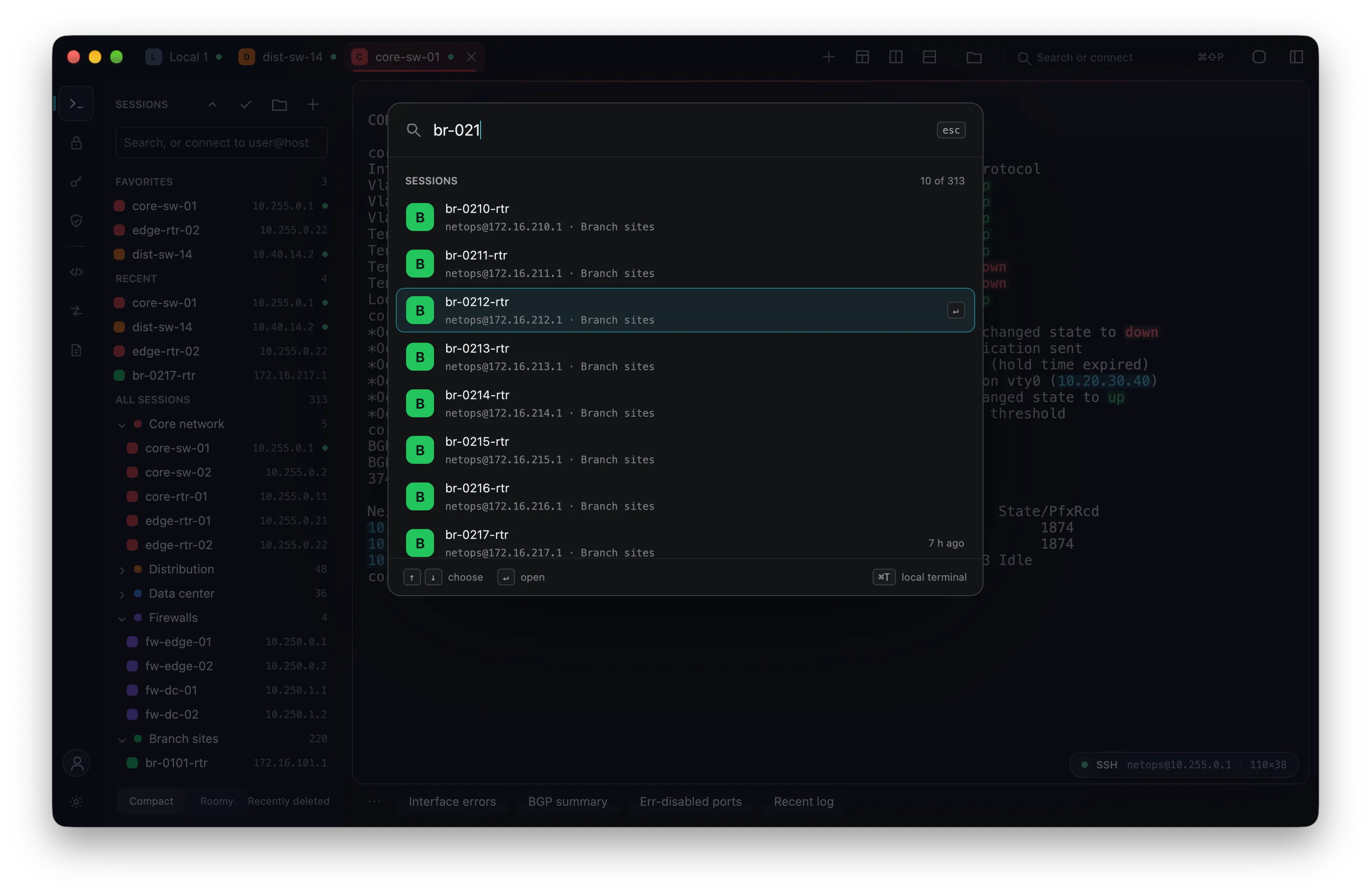
The launcher filtering 313 saved sessions down to 10 as "br-021" is typed, with keyboard selection.

Connect to anything in a keystroke

Press + or ⌘K and start typing: the launcher searches every saved session by name, address and tag, shows when you last opened each, and connects with Enter. Type user@host:port or an SSH config alias to connect to anything not saved yet.

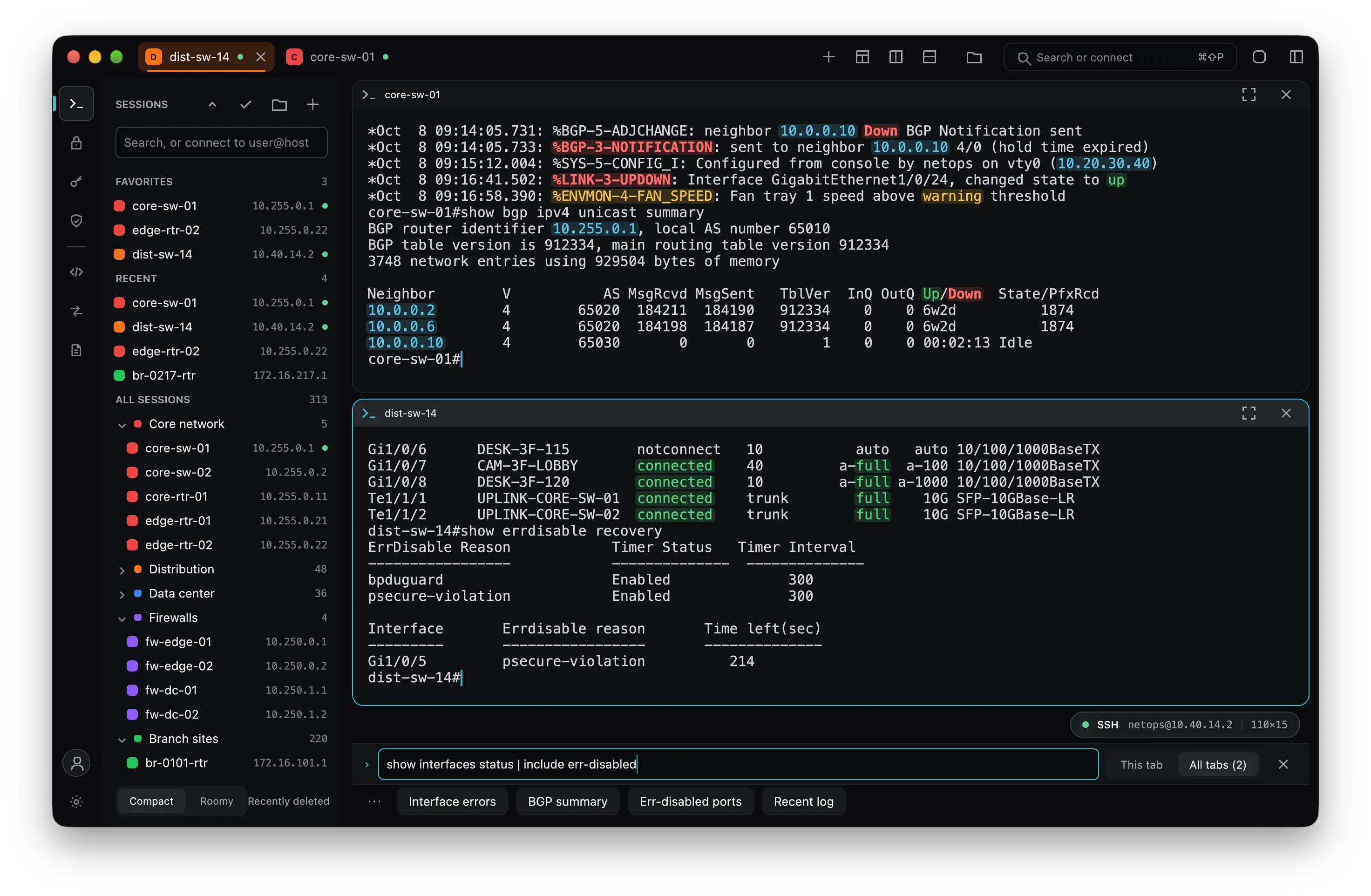
Two switches in stacked split panes, with the command window about to send a command to both.

Split panes and a command window

Watch two devices at once in split panes. The command window composes a line and sends it to the current tab or every connected tab, as SecureCRT's does; Send to several tabs reviews the exact text and tabs before anything is sent.

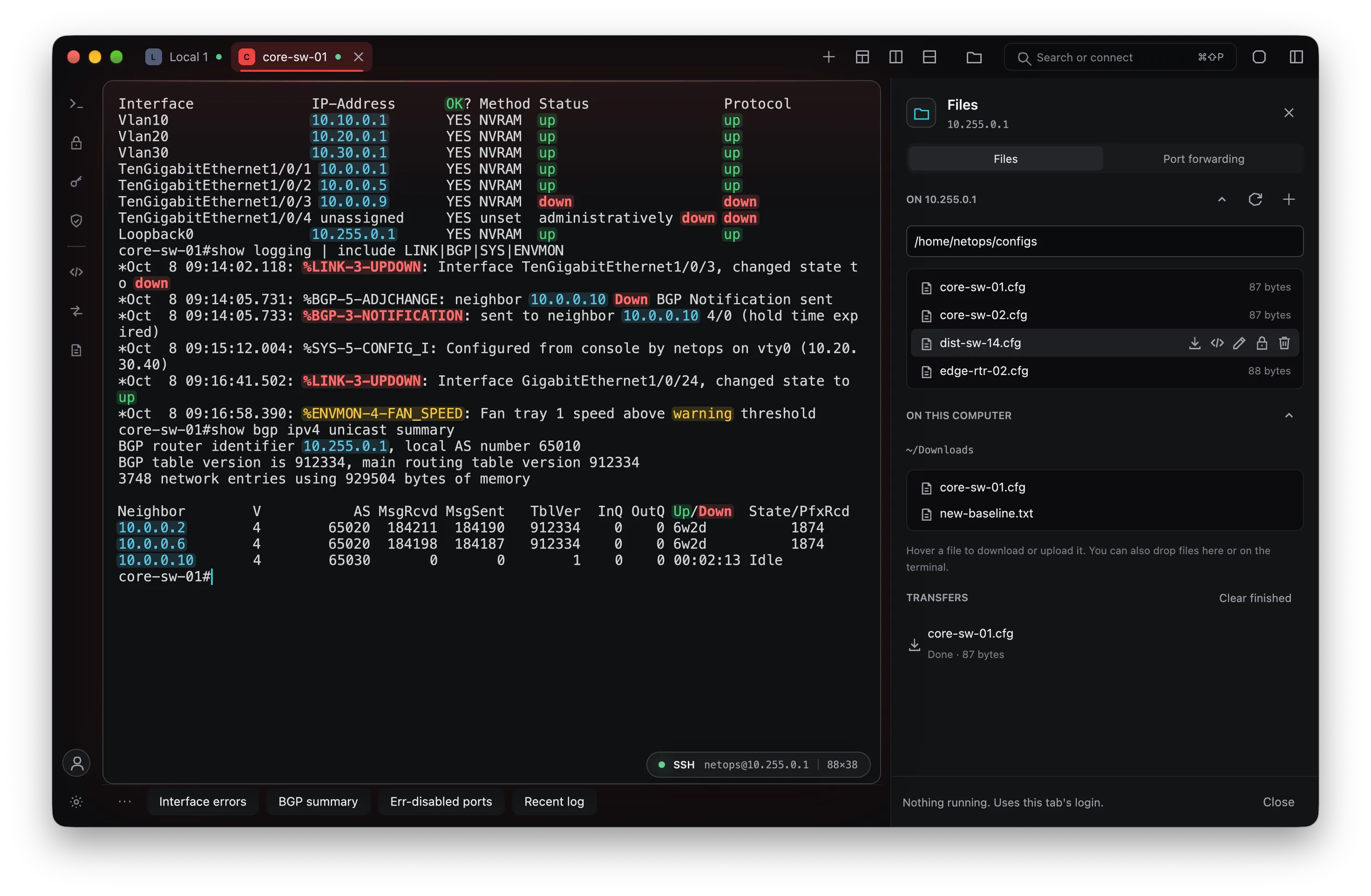
The Files panel beside a terminal: a server folder above a local folder, with a finished download.

Files over SFTP

Browse the server beside your terminal, using the login you already have. Hover a file to download, edit, rename, change its permissions or delete it; hover a local file to upload it, or drop files on the panel or the terminal. Every transfer shows exactly where it goes first, can resume a partial copy, and never overwrites by surprise.

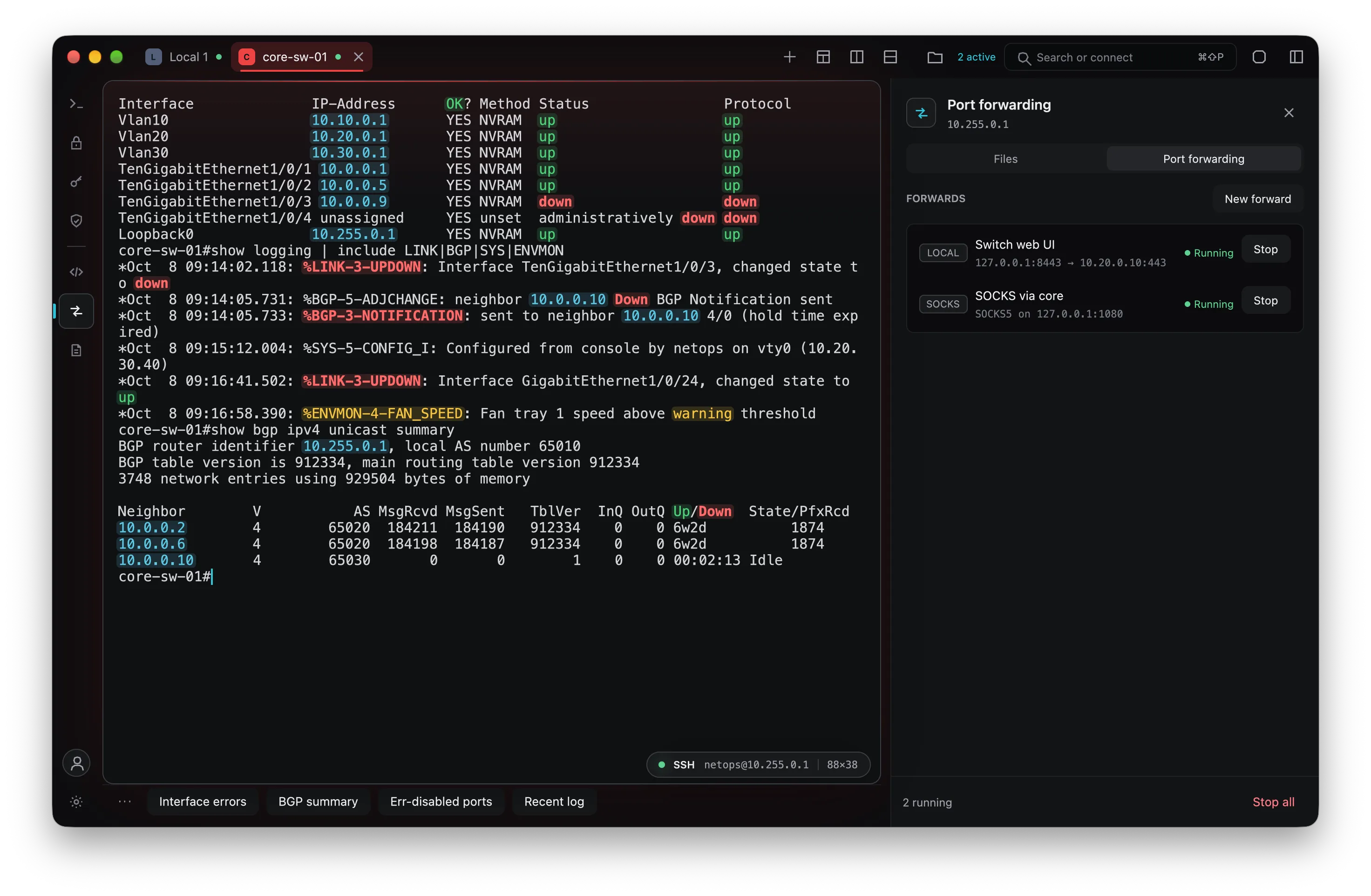
Port forwarding with a local forward to a switch's web UI and a SOCKS proxy, both running.

Port forwarding

Local, remote and SOCKS5 forwards over the session you have open, saved with the session and started with one click, or every time the session connects. A forward that other computers could reach asks first, every time.

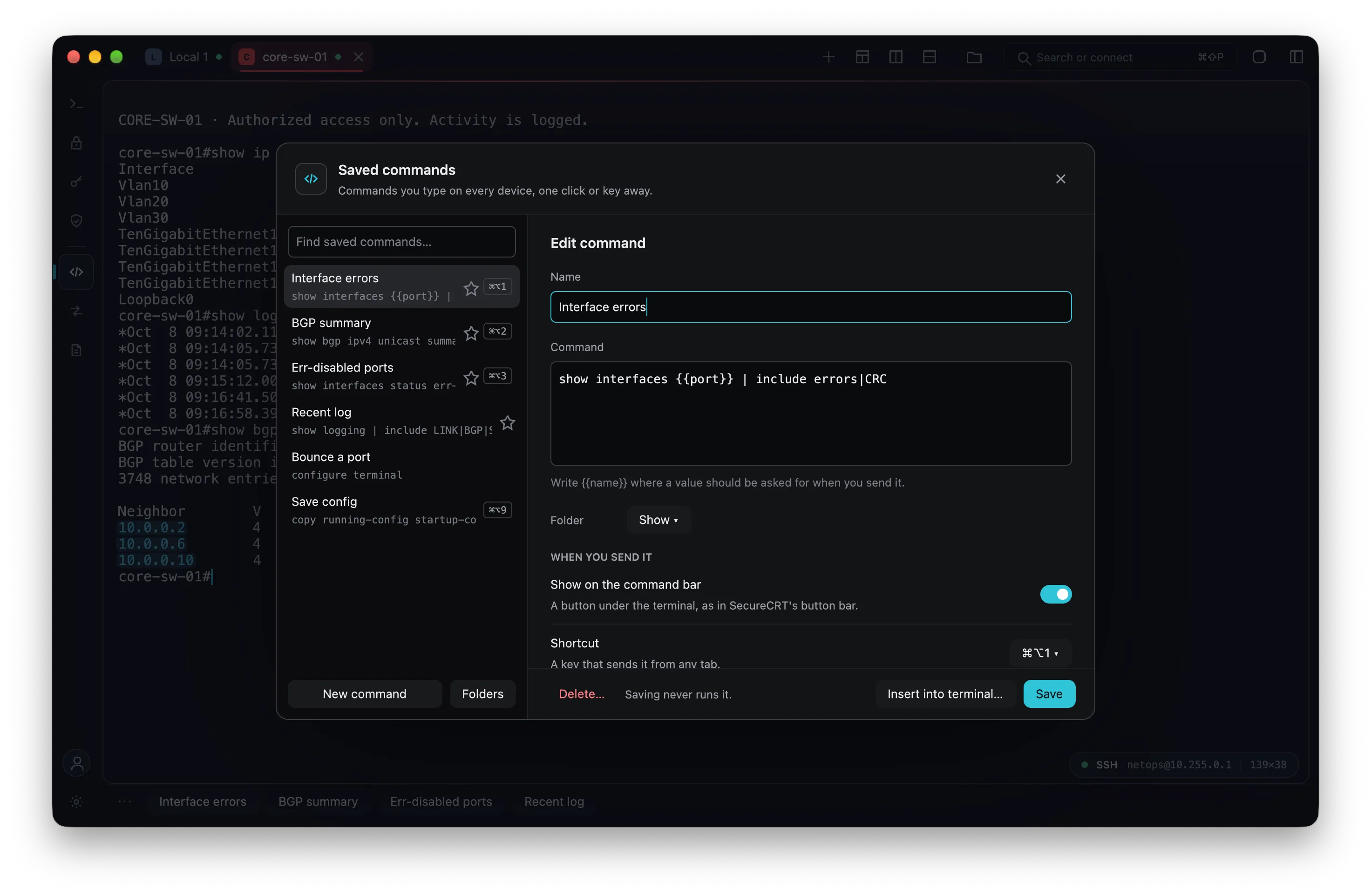
Saved commands with their shortcuts, and one being edited, with a value asked for when it is sent.

Saved commands and the command bar

Save the commands you type on every device, with {{values}} filled in when you send them. Put them on the command bar under the terminal, give them a shortcut, send them to every tab, or have them press Enter for you.

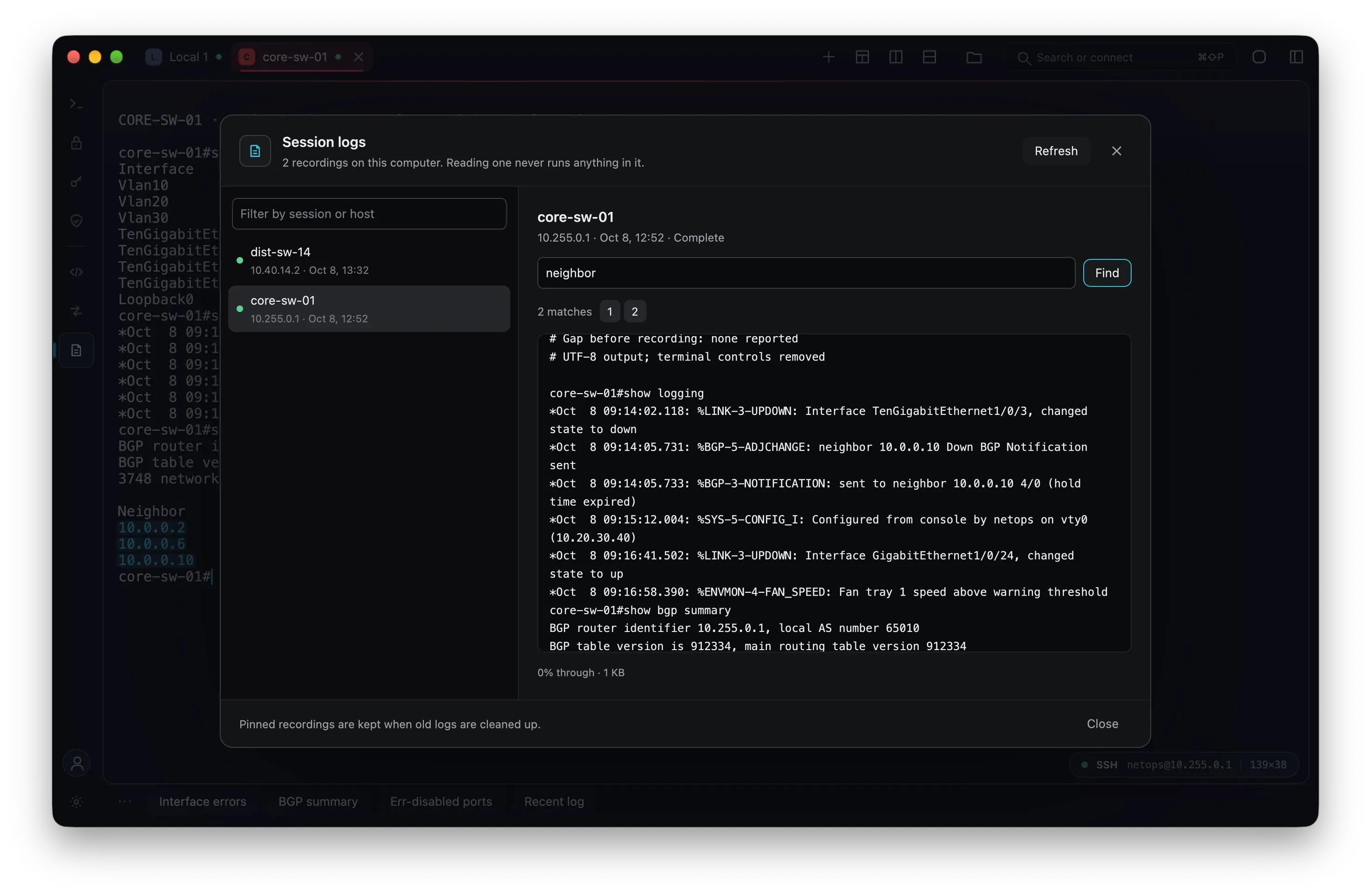
Session logs: recordings listed by device and date, one open and searched.

Session logs

Record any session to a plain-text log, with timestamps on every line if you like. Logs list newest first; open one to read and search it beside the list, and pin the ones to keep.

  • Search every log at once by text, time range and device, and jump to a match.
  • Export a change window: every device's lines between two times in one file, each log listed with its SHA-256 so the excerpt can be checked against the original.
  • Turn on log sync and your other computers list your logs, encrypted on the computer that records them. Logs your teams share in a folder appear in the same list, and search and export take them in.
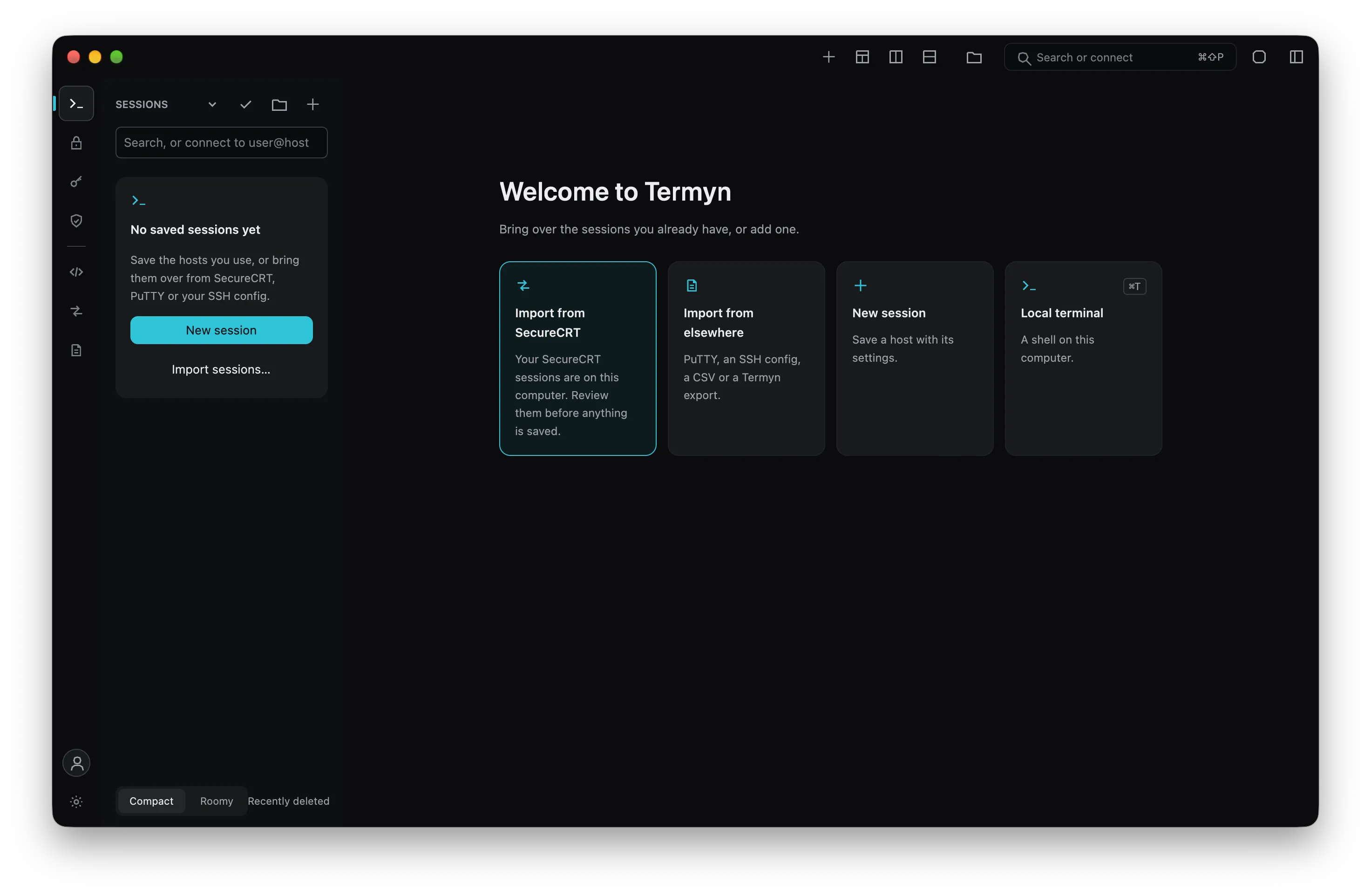
Termyn's first launch offering to import the SecureCRT sessions it found on this computer.

Coming from SecureCRT

On first launch Termyn finds your SecureCRT configuration and brings it over in one click: sessions and folders, credentials, serial ports, color schemes and auto-reconnect, and saved passwords into the system keychain if you choose.

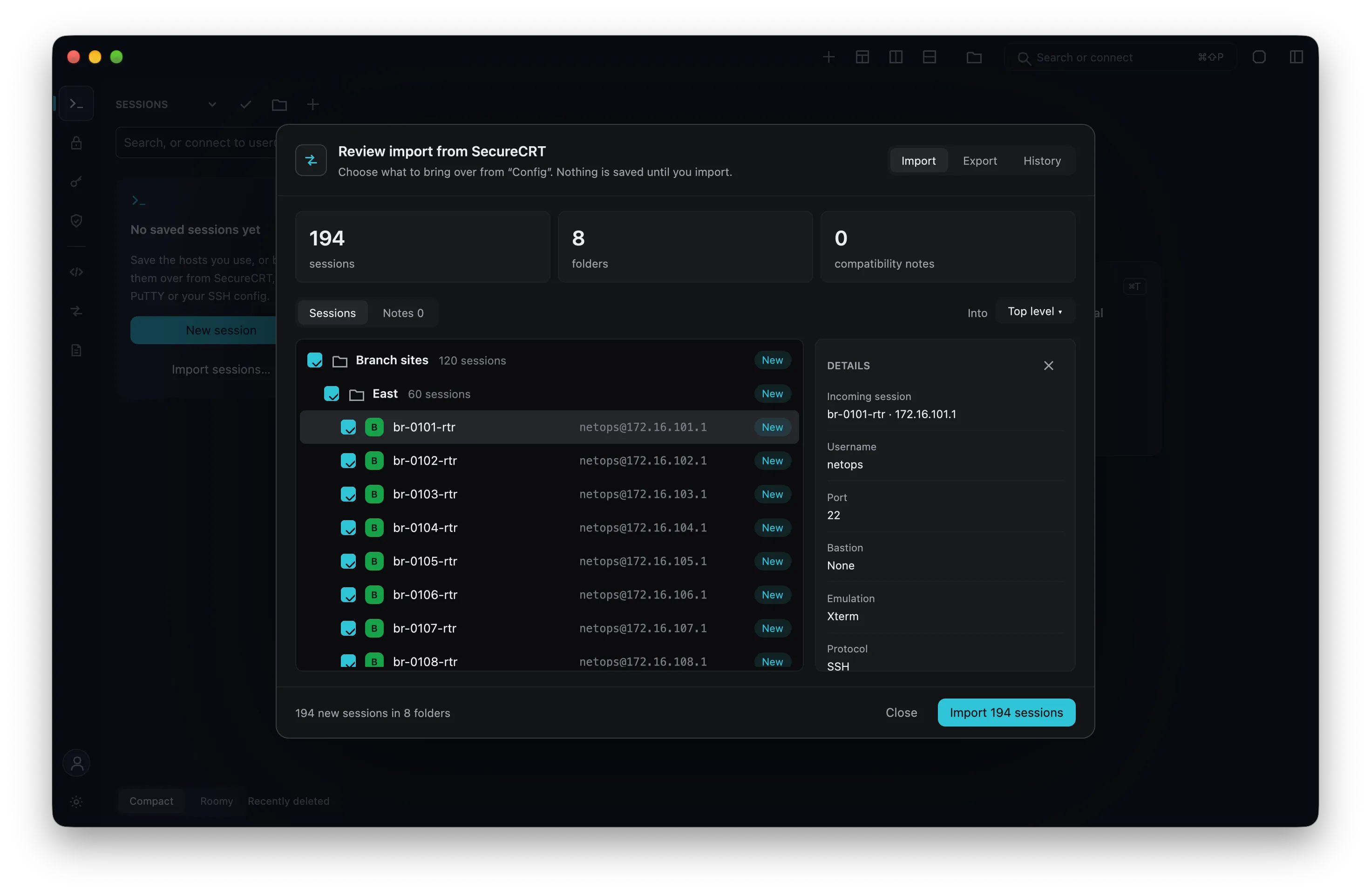
Reviewing a SecureCRT import: 194 sessions in folders, each checked, with one session's settings shown.

Review every session before it is saved

Review every session before anything is saved, and undo an import later.

  • Also imports PuTTY, KiTTY, MobaXterm, Xshell, mRemoteNG, Royal TS, Remote Desktop Manager, Tabby, Windows Terminal, iTerm2 and Remmina, an SSH config, CSV and TSV, and Termyn's own export. The import dialog says where each app keeps its sessions.
  • Sites for Termyn FX come from Xftp, WinSCP, FileZilla and Cyberduck.
  • The review lists what could not come over. Termius can only be read through the SSH config its old command-line tool wrote, not its vault. Importers have been tested with generated files in each app's format, not yet with real exports from every app.
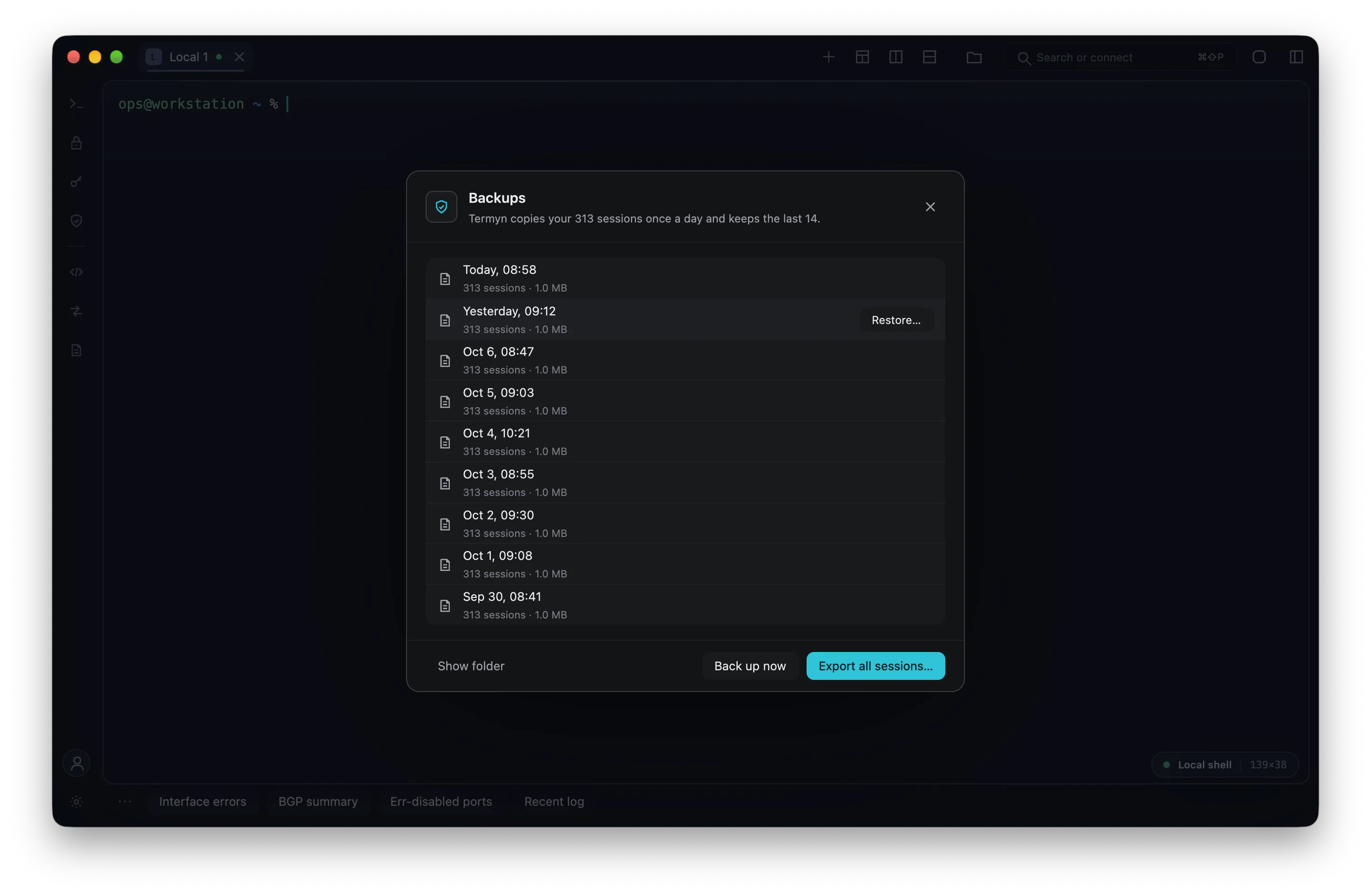
Backups: a daily copy of the session library for the last two weeks, with Restore, Back up now and Export.

Never lose a host

Termyn copies your session library every day and keeps two weeks. Restore any copy in a click (your current sessions are backed up first, so it can be undone), or export everything to a file.

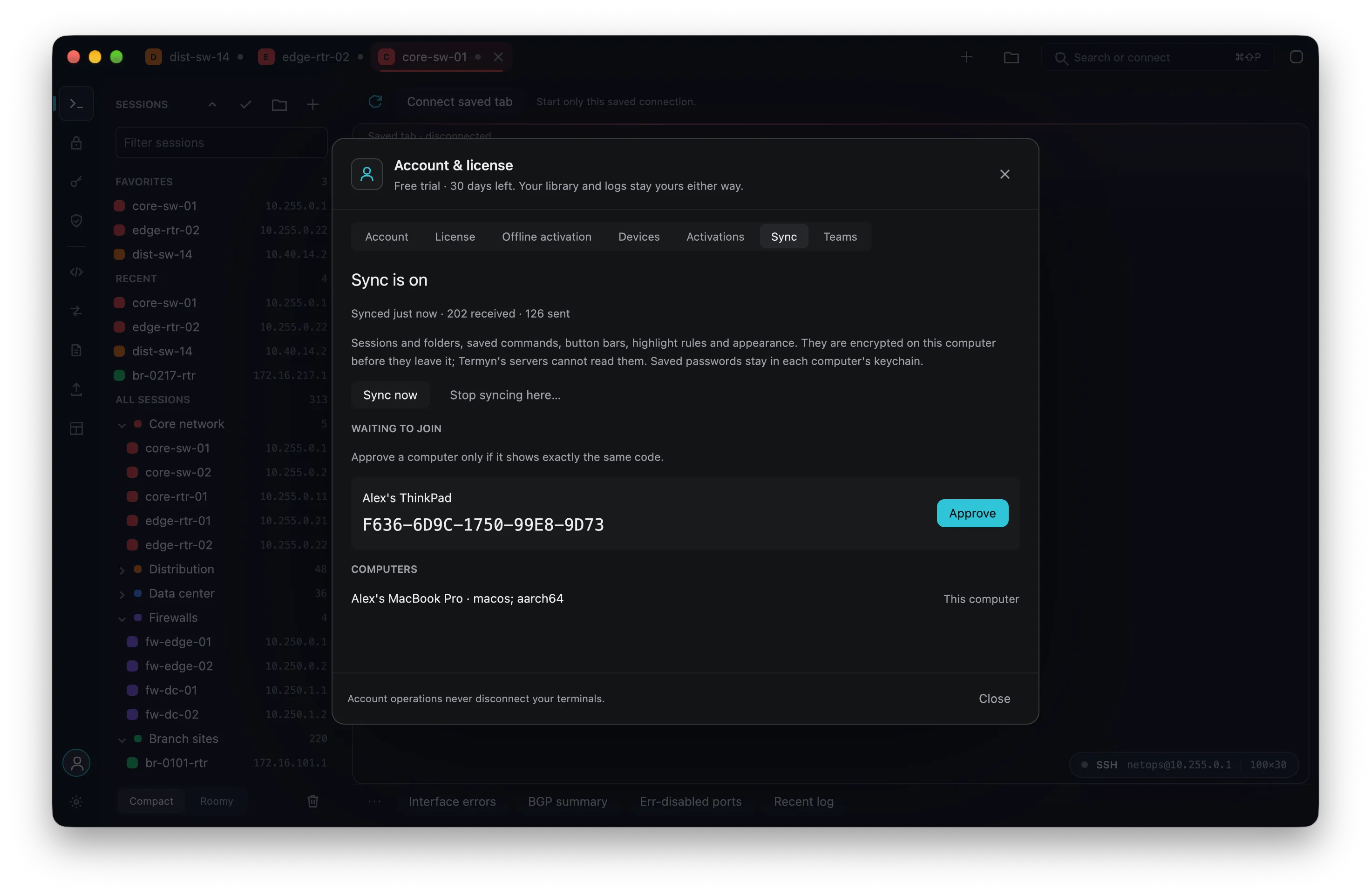
The Sync panel: sync is on, and a second computer waits to be approved with a code shown on both screens.

Sync between your computers

Sign in with your Converged Innovations account and turn on sync: your sessions and folders, saved commands, button bars, highlight rules and appearance follow you to your other computers. They are encrypted on your computer before they leave it, and Termyn's servers cannot read them. A new computer joins only after you compare a short code on both screens.

  • Saved passwords stay in each computer's keychain.
  • A recovery kit, shown once, is the way back if you lose every computer.
  • A computer you remove can read nothing new and change nothing: your other computers refuse what it writes afterwards, and your kit stays the same. If that computer may have held the kit, Termyn offers to make a new one.
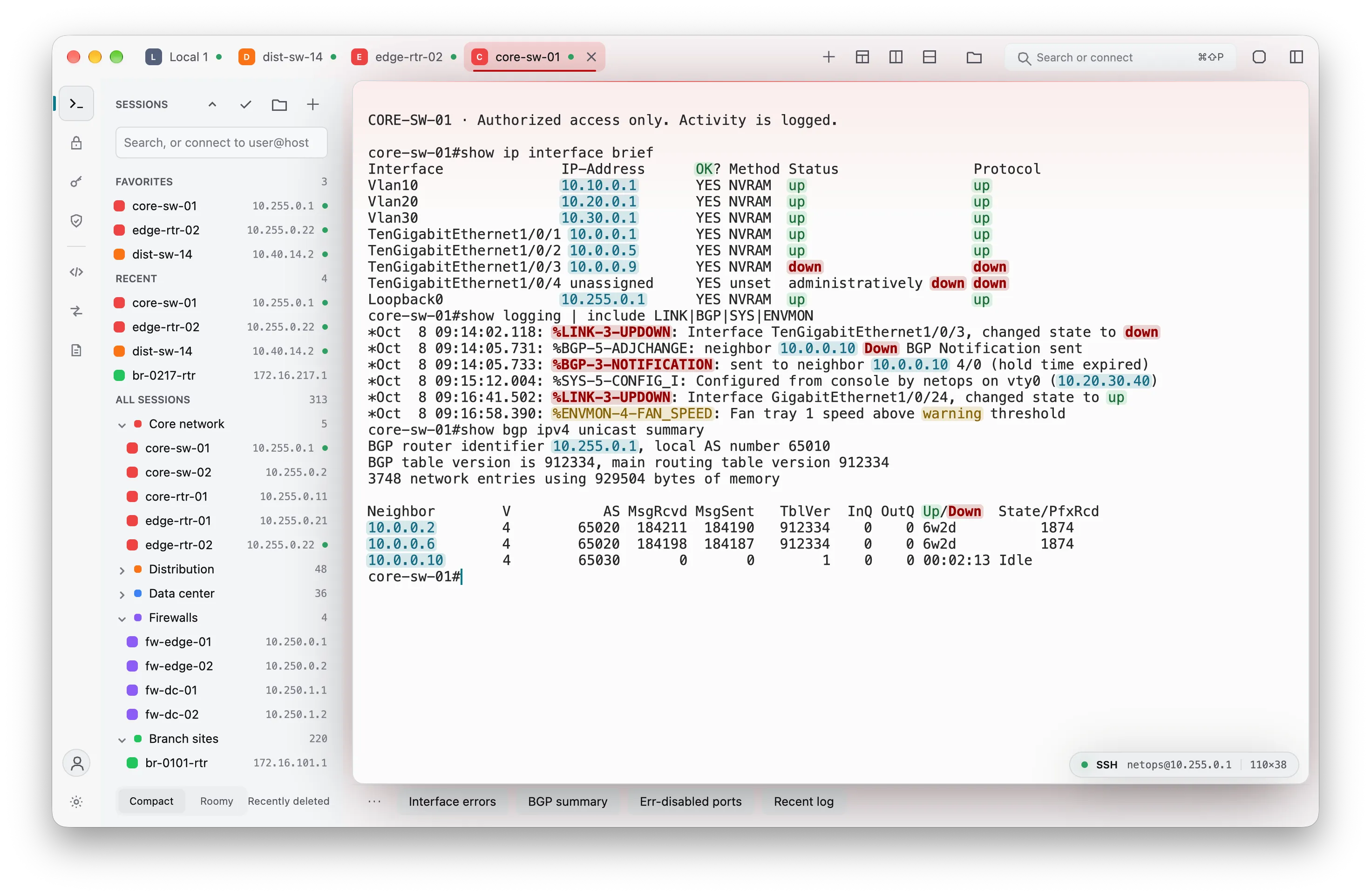
Termyn in its light theme, with a switch's output.

Light and dark

A dark Graphite theme and a light one, or follow the system. The terminal sits on a card lit by the session's color; translucency, terminal color schemes, fonts and sizes are yours to change.

Also in the app

  • SSH (built-in, or the system ssh), Telnet and serial consoles, and local shells.
  • Run commands on many devices at once: Termyn waits for each prompt, turns --More-- pages, and lays the output side by side to compare, or against a saved baseline. If any device answers with an error, no device gets another line.
  • Bring your SecureCRT Python scripts: Termyn gives them SecureCRT's crt object, using your computer's Python 3. Start one from the command palette or the command bar, watch it run on its tab, and stop it at any time.
  • Credential profiles: one login shared by many sessions; change the password once.
  • Passwords fetched from HashiCorp Vault at connect time, and SSH certificates signed by Vault.
  • SSH keys: create Ed25519, ECDSA or RSA keys and install them on a server from the active tab.
  • Known hosts: when a server's key changes, see both fingerprints and replace it only after you confirm.
  • Saved passwords and key passphrases in the system keychain, only if you tick the box.
  • Automatic reconnect, logon actions and anti-idle, per session.
  • Smart cards and tokens sign SSH logins through their PKCS#11 library; the PIN is asked once, only when the server accepts the key.
  • FIDO2 security keys: create one in SSH keys, then touch it to sign in.
  • Older network gear: a session can allow older SSH algorithms (SHA-1 key exchange, ssh-rsa, CBC ciphers) for devices that offer nothing newer. A refused connection offers it in one click, and SecureCRT imports keep it.
  • X11 forwarding, so a server's graphical programs open on your screen.
  • Zmodem and Xmodem over the terminal: sz downloads on its own, rz asks which files to send, and Xmodem reaches consoles in ROMMON.
  • A TFTP server for device upgrades and config backups: one folder, a list of transfers as they run, and nothing overwritten unless you allow it.
  • Crash reports you review first; nothing leaves your computer unless you save a copy for a support request.
  • Workspaces: save the tabs and splits of every window and bring them back.
  • Open a whole folder of sessions at once.
  • Every control works from the keyboard, with a ring that shows where you are, and Interface size draws the window up to 200 percent larger. Screen readers do not work inside the app on any OS.
  • Your computers go by their own names; rename one in the app, and your other computers, your teams and the account site follow.
  • Alerts on your phone, encrypted for the phone alone: a waiting agent, a failed command, a dropped link or a syslog line of severity 0 to 3. Tap one to watch the tab and take over typing. The phone apps are not available yet, and these have not been tried with real Apple or Google push.

Planned

Planned features are not available yet, and their details may change.

  • Windows (Linux packages exist but are not yet public).
  • Termyn for iPhone, iPad and Android: free apps that connect with no license, trial or account. Signing in adds what your account includes.
  • Team sharing: folders, sessions, saved commands, highlight rules and credentials you choose to share, with per-person access.
  • Live shared sessions, with one person typing at a time.
  • Automatic updates.

Your traffic stays yours

Termyn never routes your terminal traffic through its servers. Connections to your hosts go directly from your computer.